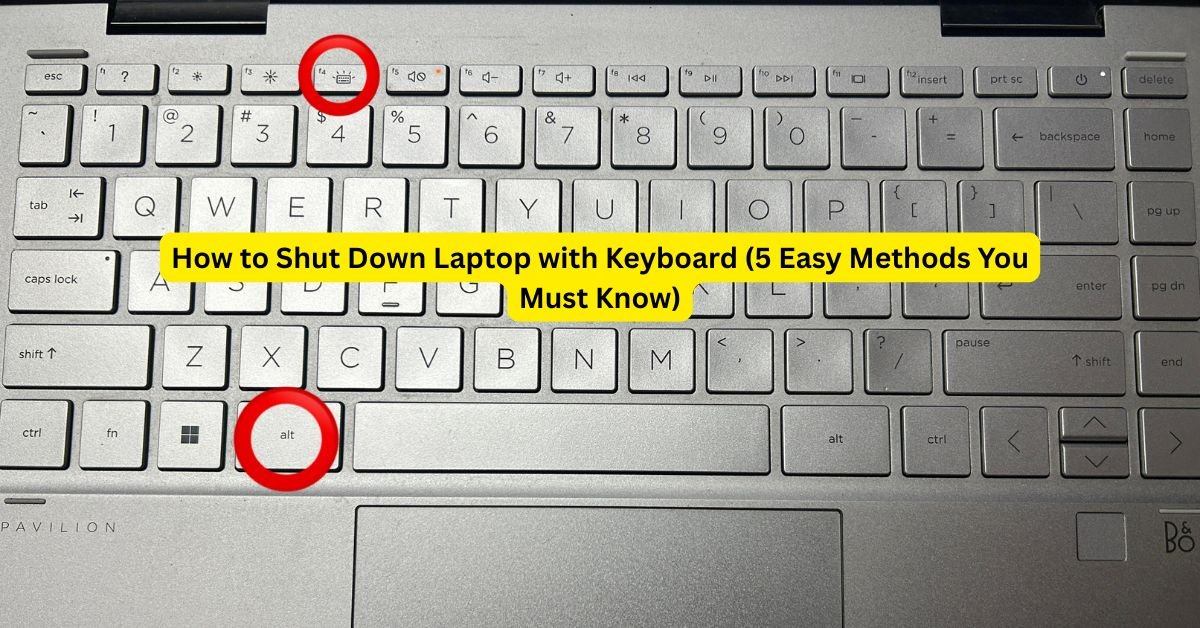
Have you ever been in a situation where your mouse suddenly stops working, your touchpad freezes, or you just want a faster way to shut down your laptop? Don’t worry — you don’t always need to drag your cursor to the Start button. You can shut down laptop with keyboard in just a few keystrokes!
In this complete guide, you’ll learn step-by-step methods to shut down laptop with keyboard on Windows, macOS, and even Linux. We’ll also cover pro tips, FAQs, and hidden tricks that can save you time and make you look like a real tech pro.
Why Shut Down Laptop with Keyboard?
Before we jump into shortcuts, let’s understand why this trick is worth learning:
- ✅ Faster than using a mouse – No clicks, no scrolling, just one shortcut.
- ✅ Lifesaver when mouse/touchpad isn’t working.
- ✅ Productivity boost – Perfect for office users, coders, and students.
- ✅ Cool factor – Honestly, it feels pro when you shut down with just your keyboard.
Method 1: Shut Down Laptop with Keyboard Using Alt + F4 (Windows)
The most popular and fastest method to shut down laptop with keyboard is the Alt + F4 shortcut.
Steps:
- Save your work.
- Press Windows Key + D (this takes you to the desktop).
- Press Alt + F4.
- A small window will pop up.
- Use arrow keys to select Shut Down.
- Hit Enter.
👉 Pro Tip: If you press Alt + F4 when an app is open, it will close the app first. Make sure you’re on the desktop before using this shortcut.
Method 2: Shut Down Laptop with Keyboard Using Ctrl + Alt + Delete
Another easy method is Ctrl + Alt + Delete, which works on all versions of Windows.
Steps:
- Press Ctrl + Alt + Delete.
- A blue screen will appear.
- Use the Tab key to highlight the power icon at the bottom-right.
- Hit Enter and choose Shut Down.
This method is especially useful when your laptop hangs or becomes unresponsive.
Method 3: Windows Key + X + U Shortcut
This is a hidden gem that most people don’t know about.
- Press Windows Key + X.
- Then press U (opens shutdown options).
- Press U again to shut down instantly.
Shortcut sequence: Win + X → U → U
Method 4: Create Your Own Keyboard Shortcut to Shut Down Laptop
Want a one-key shutdown? You can create your own shortcut.
- Right-click on desktop → New → Shortcut.
- Enter this command:
shutdown /s /t 0
Name it (e.g., “Quick Shutdown”).
Right-click → Properties → Shortcut Key.
Assign a custom combo like Ctrl + Alt + S.
Now, every time you press it, your laptop will shut down instantly.
Method 5: Shut Down Laptop with Keyboard on Mac & Linux
On macOS:
- Press Control + Option + Command + Power button → Instant shutdown.
- Or press Control + Power button → Opens a menu to choose Shut Down.
On Linux:
Open terminal (Ctrl + Alt + T) and type:
sudo shutdown now
- Or press Ctrl + Alt + Del (on many distros).
Bonus: Force Shut Down with Keyboard
Sometimes, when your laptop freezes completely, you may need a force shutdown.
- Press and hold the Power button for 5–10 seconds until the laptop turns off.
⚠️ Use this only when necessary, as it can cause data loss.
Pro Tips for Smart Users
- Always save your work before shutting down.
- Use Sleep Mode if you plan to return soon (shortcut: Win + X → U → S).
- Learn one method and practice it until it becomes muscle memory.
Frequently Asked Questions (FAQs)
1. How do I shut down laptop with keyboard when my mouse isn’t working?
Use Alt + F4 or Ctrl + Alt + Delete — both work perfectly without a mouse.
2. Can I restart laptop with keyboard?
Yes. With Alt + F4, just select Restart from the dropdown using arrow keys.
3. Is shutting down with keyboard safe?
Absolutely! It’s just another way of giving the same shutdown command to your laptop.
4. Which is the fastest shutdown shortcut?
The Win + X → U → U sequence is the fastest and requires only 3 keystrokes.
5. Can I create my own shutdown shortcut?
Yes, using the shutdown /s /t 0 command and assigning a custom shortcut.
Final Thoughts
Knowing how to shut down laptop with keyboard is more than just a trick — it’s a productivity hack. Whether you’re on Windows, Mac, or Linux, these shortcuts will save you time, help you in emergencies, and make you look like a tech wizard.
So, the next time your touchpad gives up or you’re too lazy to reach for the mouse, just remember: a couple of keystrokes are all you need to power off like a pro.
If you liked my blog, please subscribe to my blog Weblog365.in so you can stay updated with the latest news.

My name is Yogesh Pandey, and I hail from Lucknow, India. I work in digital marketing. I have been blogging since 2023. I write about Technology, Entertainment, Automobile, and Lifestyle providing insights to help others find quality products. I am excited to have the opportunity to collaborate with weblog365.in now. You can reach out to me via email at weblog365.in@gmail.com. Let’s connect! 🙏